GANVAS VPN for Android
An app for Android 7 and newer. One-tap connect, pick a country on the map, WireGuard and VLESS protocols, kill switch (Always-on VPN). We keep no traffic logs.
Install
- Download the APK: latest Android build (the
ganvas-vpn-android.apkfile) — or open the download page. - Open the downloaded file. Android asks for permission once — tap “Settings”, enable “Allow from this source”, then “Install”.
- Done — the GANVAS VPN icon appears on your home screen. Google Play — coming soon.
First launch
On first launch the app shows a short privacy disclosure and creates an anonymous account code. Save it — it’s your only key to sign in on another device. Manage your subscription in the web cabinet.
Connecting
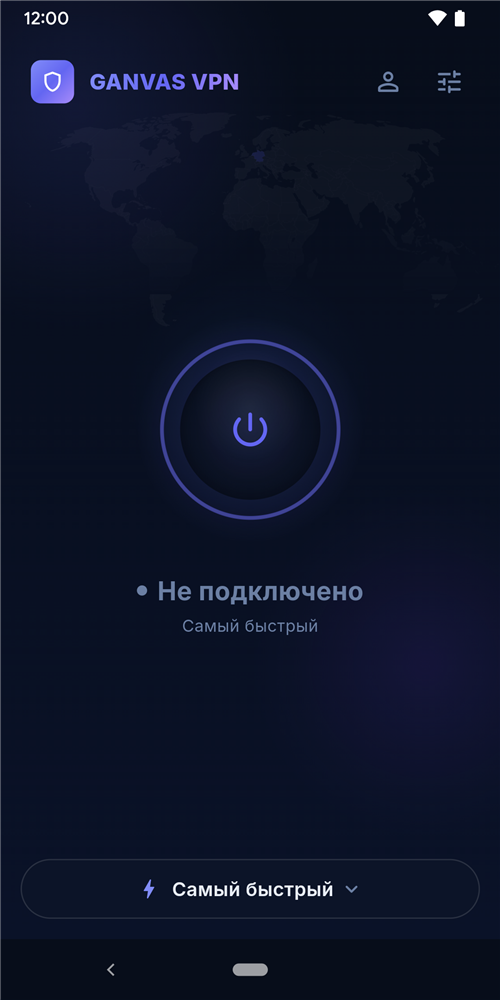
- Tap the big round button. Tap again to disconnect. On the first connect Android asks for VPN permission — tap “OK”.
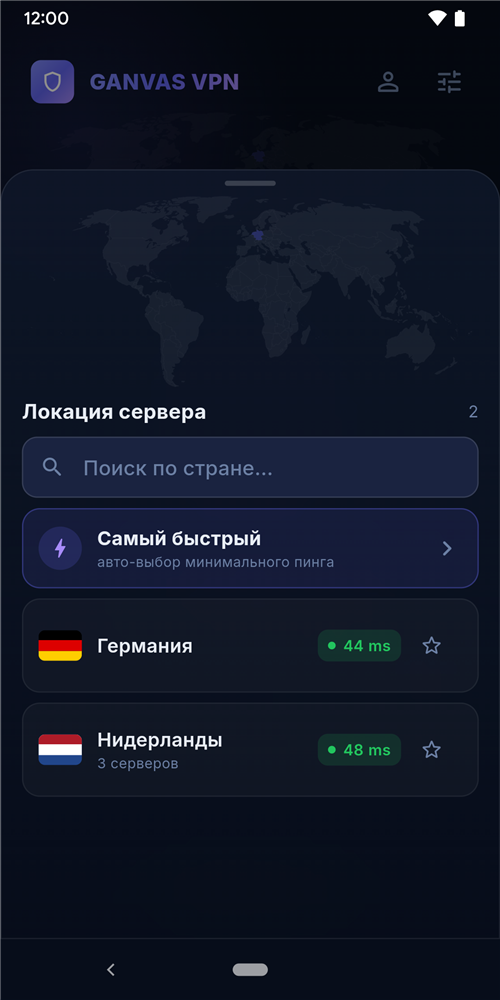
- Tap the country pill at the bottom to pick a location. “Fastest” auto-selects the lowest ping. If a country has several servers, each new connection uses a different one — a fresh IP.
- Protocol in Settings: WireGuard (fast, default) or VLESS (bypasses blocking and DPI). See Protocols.
Kill switch (Always-on VPN)
To block the internet when the tunnel drops, enable the system Always-on VPN: Android Settings → Network & internet → VPN → GANVAS VPN → “Always-on VPN” and “Block connections without VPN”. The app has a button that opens this screen (Settings → Kill Switch).
Not connecting?
- If WireGuard is blocked on your network (UDP/DPI) — switch to VLESS in Settings.
- Try a different country from the list.
- Check that your subscription is active — see the “Account” screen in the app or the cabinet.