What Is a Firewall, Explained Simply — and Why You Need One
The word “firewall” shows up everywhere: Windows mentions it, router manuals reference it, and security advice tells you “never turn it off.” But what it actually is, and why an ordinary person needs one, is rarely explained. Let’s fix that in plain English: what a firewall is, how it works, the different types, what it can and can’t do, and why it replaces neither your antivirus nor your VPN.
What is a firewall, in simple terms
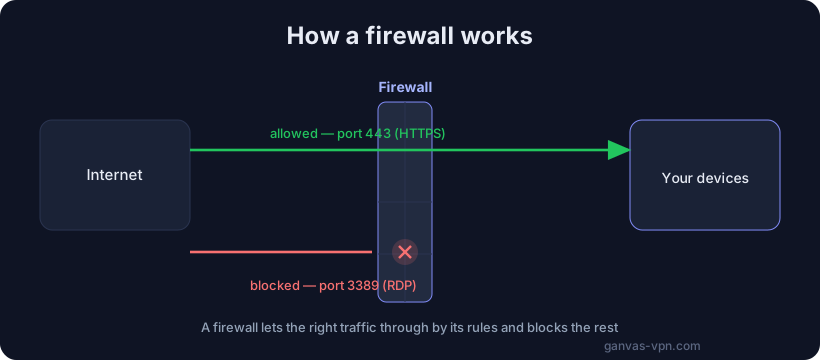
A firewall is a network traffic filter that works by rules. It sits between your device (or your entire home network) and the internet, inspecting every connection and deciding one thing: let it through, or block it.
The name comes from the literal firewall in a building — a solid wall that stops a fire from spreading from one section to another. On a network it plays the same role: it stops unwanted traffic from moving freely back and forth. The term “packet filter” describes the same idea more technically. It’s one concept under a few names.
Picture a guard at a building entrance with a rulebook: “employees with a badge — let them in; couriers — only as far as the front desk; everyone else — turn away.” The guard doesn’t read the contents of anyone’s bag or judge whether a person is trustworthy — they simply check each one against the list and decide: pass or no pass. A firewall does exactly the same thing with network connections.
How a firewall works: rules, ports, and direction
To understand a firewall, you only need three concepts: rules, ports, and traffic direction.
Rules: what to allow, what to deny
At the heart of every firewall is a set of rules. Each rule describes a type of connection and says what to do with it: allow it, or block (deny) it. A rule can be based on:
- IP address — where the connection is coming from or going to.
- Port — the number of the “door” a specific program or service uses to communicate.
- Protocol — for example, TCP or UDP.
- Application — which program on your computer is allowed to reach the network.
The firewall checks connections against the rule list from top to bottom and applies the first one that matches. A well-configured firewall follows one important principle: anything not explicitly allowed is denied by default. If no rule permits a connection, it gets blocked. This is called a “default-deny” policy, and it’s considered the safe approach.
Ports: the “doors” of your computer
A port is a numbered “door” through which networked programs send and receive data. A single IP address has tens of thousands of ports, and a service can be “listening” behind any of them. For example:
- ports 80 and 443 — the web (HTTP and HTTPS);
- port 22 — SSH (remote server access);
- port 3389 — RDP (Windows Remote Desktop).
If a service is running on a port and that port is open to the outside, anyone on the internet can “knock” on it. The firewall decides which ports are reachable from outside and which are closed. A closed port looks to a scanner as if there’s simply nothing behind that door at all — and that’s exactly what you want.
Direction: inbound and outbound connections
Traffic flows in two directions, and a firewall filters them separately:
- Inbound connections — something on the network is trying to reach your device. This is the most dangerous direction: it’s how scanners and bots hunt for open services to break into. By default, a good firewall blocks almost all inbound connections you didn’t ask for.
- Outbound connections — your programs reaching out to the internet: a browser opening a website, a messenger sending a message. Outbound traffic is usually allowed more freely, because you initiated it. But advanced firewalls can control it too — for example, to stop a suspicious program from “phoning home” to an attacker’s server.
The key idea: your home router and your system firewall, by default, only let in responses to your own requests. You opened a website — the reply from that website gets through. But if some stranger’s computer tries to initiate a connection to you, unprompted, the firewall drops it.
Types of firewalls: software and hardware
Firewalls fall into two broad classes, and in real life they work together, in layers.
Software firewall
A software firewall is part of your operating system or a standalone program running directly on your device. The best-known example is Windows Defender Firewall, built into Windows and on by default. macOS and Linux have their own equivalents.
The main advantage of a software firewall is that it sees specific applications. It knows that your browser is opening a website, but that some unknown program is suddenly trying to accept inbound connections — and it can ask you or block it. The first time you run a program that wants network access, Windows pops up “Allow this app to communicate on the network?” — that’s the firewall at work.
The downside: a software firewall only protects the device it’s installed on. If you have ten devices, each needs its own.
Hardware firewall (in your router)
A hardware firewall is built into a network device — most often your home router. It sits on the boundary between your home network and the internet and protects all connected devices at once: computers, phones, the TV, smart bulbs.
In home routers, much of the firewall’s job is done by a mechanism called NAT (Network Address Translation). Thanks to NAT, devices inside your home don’t have their own public addresses on the internet — only the router’s single address is visible from outside. This means a stranger’s computer on the internet physically can’t reach your laptop directly unless you’ve opened a port for it. The result is a natural barrier: inbound connections nobody requested have nowhere to go.
In practice, the best protection is both layers together: the router’s hardware firewall blocks mass scanning at the edge of the network, while the device’s software firewall controls specific applications and protects you even on someone else’s untrusted network (a café, an airport, a coworking space).
What a firewall does — and does NOT do
This is where the most common misconception lives. A firewall is important, but narrowly specialized. It is not “protection against everything.”
What a firewall does
- Blocks unwanted inbound connections. Scanners and bots constantly sweep internet addresses looking for open services. A firewall makes your ports “invisible” and fends off these attempts.
- Controls which programs reach the network. A software firewall won’t let an unknown app quietly accept connections, or — in strict mode — reach out to the internet.
- Segments traffic. In more advanced setups, a firewall separates networks — for example, keeping a hacked smart camera away from your work laptop.
What a firewall does NOT do
- It does not replace an antivirus. A firewall looks at connections, not at the contents of files. If you yourself download an infected file over an allowed connection (say, through your browser over ordinary HTTPS) and run it, the firewall won’t stop you — to it, that’s legitimate traffic you initiated.
- It does not encrypt your traffic. A firewall decides “pass or no pass,” but it does not make a connection private. Your internet provider can still see which domains you visit. Encrypting and hiding traffic is the job of a VPN, not a firewall.
- It does not protect against phishing or social engineering. If you type your password into a fake website yourself, the firewall breaks no rule: you established the connection willingly.
- It does not save you from vulnerabilities in allowed services. If you opened a port to the outside and the service behind it has a flaw, the firewall lets the attack through — by its rules, that traffic is permitted.
The takeaway is simple: a firewall is one layer of defense — perimeter control of your network. It does its job well, but it needs other tools beside it.
Open ports and the risks
The main practical danger comes down to open ports. Every port open to the outside is a potential target.
An open port means there’s a service behind it that’s reachable from the internet by anyone. Automated scanners like Shodan crawl the entire internet around the clock, indexing such ports. An exposed webcam, a network-attached storage box (NAS), a router admin panel, or a remote desktop ends up in their databases within hours — after which password-guessing and known-exploit attempts begin automatically, with no human involved.
Ports usually get opened for one of two reasons: you set up port forwarding yourself for remote access to something at home, or an application quietly opened a port through UPnP (an automatic port-forwarding mechanism). The second case is especially sneaky — you may not even know there’s an open door facing the internet.
That’s why it’s worth checking periodically which of your ports are open from outside. You can do it in a minute with our port checker: it shows, from the internet’s point of view, which doors on your address actually respond. Ideally, nothing should be “facing out” that you didn’t deliberately put there.
How to configure a firewall, the basics
The good news: for most people, the firewall is already configured correctly out of the box. The main thing is not to break that protection. The basic common-sense rules:
- Don’t disable the firewall without a good reason. The most common mistake is switching off the Windows firewall because “the game wouldn’t launch” or “some tip online said to.” A disabled firewall opens up all inbound connections. If an app doesn’t work, the right move is to add a targeted exception rule for it — not to turn off protection entirely.
- Don’t open ports you don’t need. Only open a port to the outside when you genuinely understand why, and close it when the need is gone. Every open port is an attack surface that’s permanently available.
- Disable UPnP on your router if you don’t need it. That way applications can’t quietly forward ports to the outside behind your back.
- For remote access, use a VPN rather than port forwarding. Instead of exposing RDP, a camera, or a NAS to the internet, set up a single encrypted entry point. There’s a detailed walkthrough in the guide on securing your home network.
- Keep the “deny inbound by default” policy. This is the standard, correct behavior of a home firewall — don’t change it unless you have to.
- Pay attention to prompts. When Windows asks whether to allow a program network access, don’t click “Allow” on autopilot. If you don’t know what the program is, it’s safer to deny.
For the vast majority of home scenarios, this is enough: an enabled system firewall plus the router’s firewall seal the perimeter without any fine-tuning.
Firewall vs VPN vs antivirus: different layers of defense
This is probably the most important section, because these three tools get confused constantly. In reality they solve different problems and don’t replace one another — they work in layers.
- A firewall is border control. It decides which connections can be established at all: what to let in, what to let out, which ports to close. Its job is to keep out uninvited guests and hold the perimeter.
- An antivirus is content control. It checks the files and programs on your device for malicious code. The firewall will let a file download through (the connection is legitimate); recognizing that the file contains malware is the antivirus’s job.
- A VPN is privacy and channel encryption. A VPN wraps your traffic in an encrypted tunnel, hides its contents and destinations from your provider, and changes your visible IP address. A firewall does none of this: it filters connections but doesn’t conceal them.
A good analogy is protecting a house. The firewall is the fence with a gate and a guard: it decides who gets onto the property. The antivirus is inspecting what gets carried inside: making sure no package contains something dangerous. The VPN is tinted windows and an unremarkable car: outsiders can’t see where you’re going or what you’re carrying. You can build a fence, but without inspecting contents, something harmful still gets carried inside; you can inspect contents, but without a fence anyone walks into the yard; and tinted windows replace neither.
The conclusion: for real protection you need all three layers. The firewall holds the perimeter, the antivirus catches malicious code, and the VPN provides privacy and helps bypass blocks. For more on how a provider can see and filter your traffic even through encryption, see the article on DPI and bypassing blocks.
Short FAQ
Are a firewall and a “packet filter” the same thing? Essentially, yes. A firewall is a network traffic filter that works by rules. The terms differ mostly in technical precision and origin, but they describe the same concept of deciding which connections to allow.
Do I need a separate firewall if Windows has one built in? For most people, the built-in Windows Defender Firewall is perfectly sufficient — it’s on by default and well configured. Third-party firewalls offer finer control over outbound connections, but an ordinary user rarely needs that.
Does a firewall protect against viruses? Indirectly — it can stop malware from accepting inbound connections or “phoning home.” But it can’t scan files for malicious code; that’s the antivirus’s job. A firewall and an antivirus complement each other rather than replace one another.
Does a firewall hide my IP or encrypt my traffic? No. This is a common misconception. A firewall only decides whether to pass a connection or not. Hiding your IP and encrypting your traffic is the job of a VPN.
Should I disable the firewall when something doesn’t work? Almost never. If an app can’t reach the network, the right move is to create a targeted exception rule for it rather than turning off protection entirely. A disabled firewall opens up all inbound connections.
How do I find out which of my ports are open to the outside? Use the port checker — it shows, from the internet’s perspective, which ports on your address respond to connections.
Bottom line
A firewall is a network traffic filter that decides, based on a set of rules, which connections to let through and which to block. It comes in software form (like Windows Defender Firewall) and hardware form (in your router), and the two layers work best together. A firewall is excellent at holding the perimeter and closing ports off from scanners, but it doesn’t replace your antivirus and doesn’t encrypt your traffic — those are different layers of defense. Basic hygiene is simple: don’t disable the firewall without reason, don’t open ports you don’t need, and periodically check that nothing extra is facing the internet.
And when you need the privacy layer — encrypting traffic and bypassing blocks, which a firewall doesn’t provide — take a look at GANVAS VPN: its modern VLESS + Reality protocol disguises traffic as ordinary HTTPS, with leak protection and support for your own configs. You can start with the free VPN.