Two-Factor Authentication (2FA): What It Is, Why, and How to Enable It
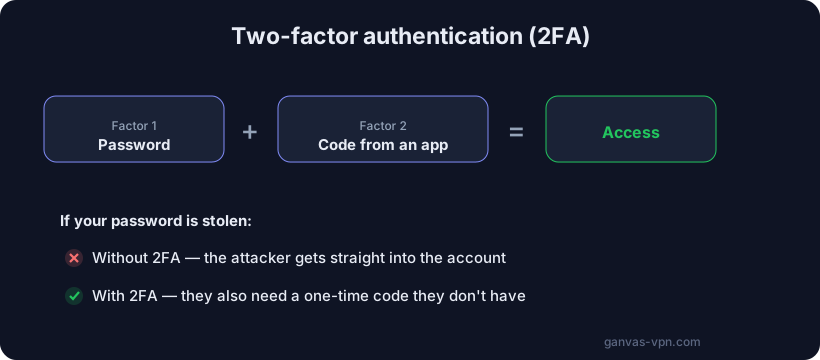
Picture this: your password has been stolen. It doesn’t matter how — a phishing site, a leak from a breached service’s database, malware on someone else’s computer where you logged in. A stranger now holds one of your passwords, and if that password is all it takes to log in, they’re already reading your email, messaging your contacts, and trying the same password on your bank and other sites. What saves you at that moment? Not “a stronger password” — it was stolen in full anyway. What saves you is a second factor: something the attacker doesn’t have and didn’t get along with the password. That’s two-factor authentication, and this article is about how it works and how to set it up properly.
What 2FA is, in plain words
Two-factor authentication (also called two-step verification, 2FA) means logging into an account using two different “proofs” that it’s really you. A normal login uses one factor: a password. A two-factor login adds a second one of a fundamentally different type.
Factors fall into three categories:
- Something you know — a password, a PIN, the answer to a secret question.
- Something you have — a phone, an authenticator app, a physical key, a SIM card.
- Something you are — a fingerprint, a face, a voice (biometrics).
The point of 2FA is to require factors from different categories. A password (knowledge) plus a one-time code from an app on your phone (possession) is two factors. But a password plus a secret question is technically still a single “knowledge” factor, so that pair protects you weakly: both can be stolen or guessed the same way.
The core idea is simple: even if the password leaks, no one logs in without the second factor. An attacker sitting a thousand miles away may know your password by heart, but they don’t have your phone and they don’t have the physical key in your pocket. That’s exactly what stops the bulk of breaches, because the overwhelming majority are automated guessing and reuse of stolen passwords — not a targeted attack on you personally.
Types of second factor
Not all second factors are equally reliable. Let’s go through the three main types, from weakest to strongest.
SMS codes: better than nothing, but the weakest
The most familiar option: you enter your password, the service texts you a code, you type it in. Convenient, requires nothing to install, works on any phone. But SMS has serious weak spots:
- SIM swap. An attacker who knows your details contacts your carrier and reissues your SIM to themselves — sometimes through social engineering, sometimes via a bribed employee. After that, all your texts, including 2FA codes, go to them. This isn’t theory: SIM swaps are used to steal accounts and crypto wallets alike.
- SMS interception. SS7, the protocol cellular networks rely on, has known vulnerabilities that allow messages to be intercepted. For an ordinary person this is a rare threat, but for a valuable target it’s real.
- Real-time phishing. A fake site asks you for both your password and your SMS code, then immediately replays them on the real site. The code is one-time, but the attacker only needs the few seconds it’s valid.
- Dependence on the network. No signal, roaming, a changed number — and the code never arrives.
The honest takeaway: SMS-based 2FA is far better than no 2FA at all, and if a service only offers SMS, enable it without hesitation. But when you have a choice, pick something stronger.
Authenticator app (TOTP): the recommended choice
This is the “sweet spot” between convenience and security, and it’s what you should use by default. It works like this: during setup the service shows a QR code, you scan it with an authenticator app (Google Authenticator, Microsoft Authenticator, Aegis, 2FAS, Authy, and others). A row for that account appears in the app, and a six-digit code in it changes every 30 seconds. When you log in, you type whatever code is shown right now.
The technology is called TOTP (Time-based One-Time Password). During setup, your device and the server exchange a shared secret (that QR code), and from then on both independently compute the code from that secret and the current time. That’s why the codes match without any communication — the app needs no internet to generate them.
Why this is much better than SMS:
- No tie to your phone number. A SIM swap is useless: the code lives in an app on your device, not in the cellular network.
- Works offline. No signal, roaming, on a plane — the code still generates.
- The secret isn’t sent over the network on each login, so it can’t be intercepted the way an SMS can.
TOTP has one weak spot: the code can still be phished in real time, like SMS, because you type it by hand on a page. Only the next level protects against that.
Hardware keys (FIDO2/WebAuthn): maximum protection
A physical key is a small device (shaped like a USB stick, or with NFC) that you plug into a port or tap to your phone and then press a button. The standards are called FIDO2 and WebAuthn. This is the most reliable mainstream second factor, and here’s why it’s fundamentally better than codes.
The key doesn’t show you a code that you can type in somewhere (and that therefore could be phished). Instead it uses public-key cryptography and checks the site’s address. When you register, the key remembers exactly which domain it was created for. When you log in, the browser passes the key the real page address, and if it’s a fake phishing site, the key simply refuses to work. There’s nothing to steal: the secret never leaves the device, and the domain can’t be faked.
That’s precisely why hardware keys are phishing-resistant — unlike SMS and TOTP. The downsides: you have to buy the key, you can lose it (so people keep two — a primary and a spare), and not every service supports it. For your most important accounts — the email everything else is tied to — it’s a worthwhile investment.
Worth mentioning are passkeys — a modern evolution of the same FIDO2 technology, where your phone or computer with biometrics plays the role of the key. A passkey can replace the password entirely while staying phishing-resistant.
Why an app beats SMS, in short
If you remember one rule, make it this: use an authenticator app instead of SMS wherever you can. SMS is vulnerable to SIM swaps and interception, and depends on the cellular network and your carrier. An app generates codes locally, offline, with no tie to your number, and it can’t be “stolen” along with your SIM. A hardware key is even better, but an app is the sensible maximum available for free, right now, on any smartphone. Leave SMS only where there’s no other option.
How to enable 2FA: the general steps
The exact menu items differ from service to service, but the logic is the same everywhere. Here’s a universal order of operations.
- Find security settings. In your account, open “Settings” → “Security” (or “Login & security,” “Privacy”). Look for “Two-factor authentication,” “Two-step verification,” or “2FA.”
- Choose a method. If an authenticator app is offered (often called “Authenticator app”), pick it over SMS.
- Install an authenticator app if you don’t have one. Good choices: Aegis or 2FAS (open-source, with export), Google Authenticator, Microsoft Authenticator.
- Scan the QR code. The service shows a QR code — point the camera in your app at it. The account is added and immediately starts showing a six-digit code.
- Confirm with a code. Type the current code from the app back into the site, so the service confirms everything is set up correctly.
- Save your backup codes (more on this below — it’s critical).
- Repeat for your important accounts. Start with email — it’s the “key to every door,” since password resets everywhere run through it. Then banks, messengers, social media, cloud storage, your password manager.
The whole process takes a couple of minutes per account. It’s best not to put it off: 2FA only protects you after it’s enabled, not retroactively.
Backup codes: don’t lose them
This is the single most common reason people fear 2FA and end up locked out of accounts. Let’s cover it separately.
When you enable two-factor authentication, the service almost always gives you backup codes (recovery codes) — a list of one-time codes like 8f3k-9210. They exist for one purpose: to let you log in when the second factor is unavailable. Lost your phone, broke it, reset it, traveled without it — a backup code stands in for the app’s code and gets you in.
If you didn’t save your backup codes and you lose the phone with your authenticator, you can be permanently locked out of the account — sometimes recovery is impossible at all. So:
- Save the codes right away when you enable 2FA, not “later.”
- Keep them separate from your phone. Print them and store them somewhere safe, or save them in a password manager (a solid option — see below).
- Don’t keep your only copy in the same place as the authenticator. If the codes live only in a note on the very phone you’ll lose, they’re worthless.
- Cross off each code after using it — they’re one-time.
A good habit: if your authenticator app supports encrypted export (Aegis, 2FAS), back up the vault and store it somewhere safe. Then switching phones doesn’t turn into a recovery quest across a dozen accounts.
Common mistakes
These are the rakes people step on most often:
- Keeping backup codes on the same phone as the authenticator. Lose the device and you lose both the factor and the insurance at once. The copy has to be elsewhere.
- Using SMS when an app is available. When you have a choice, the app is more reliable. Keep SMS as a last resort.
- Enabling 2FA on just one account. You protect a social network but not your email — and the password reset for that social network runs through your email. Start with email.
- The same password plus 2FA. 2FA doesn’t cancel the unique-passwords rule. If one password is shared across five sites and 2FA is on only one of them, the other four still fall to a single leak.
- Not backing up the authenticator. New phone, and all the codes are gone. Set up export in advance, or enable 2FA on several devices if the service allows it.
- Typing a code on a suspicious site. TOTP and SMS can be phished. Always check the page address before entering a code; for your most valuable accounts, use a hardware key that checks it for you.
- Treating 2FA as an optional trifle. It’s one of the highest-value security measures per unit of effort. Ten minutes of setup saves you a catastrophe.
How 2FA fits with a strong password and a password manager
2FA isn’t a replacement for a password — it’s a second layer on top of it. They work together, and here’s how to build complete account protection.
A strong, unique password is the first factor. If it’s weak or reused, the attacker has it easier: somewhere 2FA may be off, somewhere it’ll be bypassed via recovery. So start with passwords: each one long, random, and unique to each site. You can generate one with our password generator and rate its strength with the password strength check. It’s also worth finding out whether your current passwords have leaked in known databases — the password breach check shows that.
A password manager makes this realistic. Keeping dozens of unique passwords in your head is impossible — so you store them in a manager and remember one master password. Bonus: many managers can also store TOTP codes and 2FA backup codes, becoming a single secure vault. There’s a caveat: if both the password and the second factor live in one manager, compromising the manager exposes both. For most people the convenience outweighs that, but then the manager’s master password must be especially strong, and the manager itself should absolutely have a hardware key or separate 2FA enabled.
This builds a simple hierarchy of account protection:
- A unique, strong password on every site — closes off reuse and guessing.
- 2FA via an app or key — closes off theft of the password itself.
- Backup codes in a safe place — close off loss of the second factor.
- A VPN — closes off traffic interception on an untrusted network where you type those passwords.
Each layer catches what the previous one missed. It’s the same “defence in depth” as in securing your home network, applied to accounts.
A short FAQ
If I have 2FA everywhere, can I use simple passwords? No. 2FA isn’t enabled identically on every service, and some let it be bypassed through an email password reset. A unique, strong password stays the foundation.
Will 2FA make me enter a code on every login? Usually not. Most services let you “remember” a trusted device, asking for the code only when you log in from a new device or browser, or once every so often.
If I lose my phone, do I lose all my accounts? Only if you didn’t save your backup codes and didn’t back up the authenticator. With backup codes or a vault export, you can recover access calmly.
Which authenticator app should I choose? Any reliable one: Aegis and 2FAS are nice because they’re open-source and support encrypted export. Google Authenticator and Microsoft Authenticator are simple and popular. The main thing — not SMS, when you have a choice.
Does 2FA protect against phishing? SMS and TOTP — partially: the code can be phished on a fake site. Only a hardware key (FIDO2) or a passkey fully protects against phishing, because it verifies the site’s address.
Do I still need separate 2FA if I have a passkey? A passkey is phishing-resistant on its own and often replaces both the password and the second factor. It’s a modern, convenient path when the service supports it.
Protect your accounts — and add a layer of encryption
Two-factor authentication is one of the best-value security measures there is: ten minutes of setup per account protects you from the vast majority of breaches, because a stolen password is no longer enough to log in. Turn it on for your email, then your banks, messengers, and cloud storage, choose an authenticator app over SMS, and save your backup codes somewhere safe and separate from your phone. Together with unique passwords from a generator and a password manager, that closes off nearly the whole perimeter of your accounts.
One layer remains — the channel itself, over which you type those passwords. In a café, a hotel, or someone else’s network, traffic can be intercepted, and your ISP sees which sites you open. GANVAS VPN creates an encrypted tunnel, closes DNS and WebRTC leaks, and helps you stay private where the network isn’t yours. You can start for free — take a look at the free VPN. Security is layers: a strong password, a second factor, and encrypted traffic together make you a genuinely hard target.